
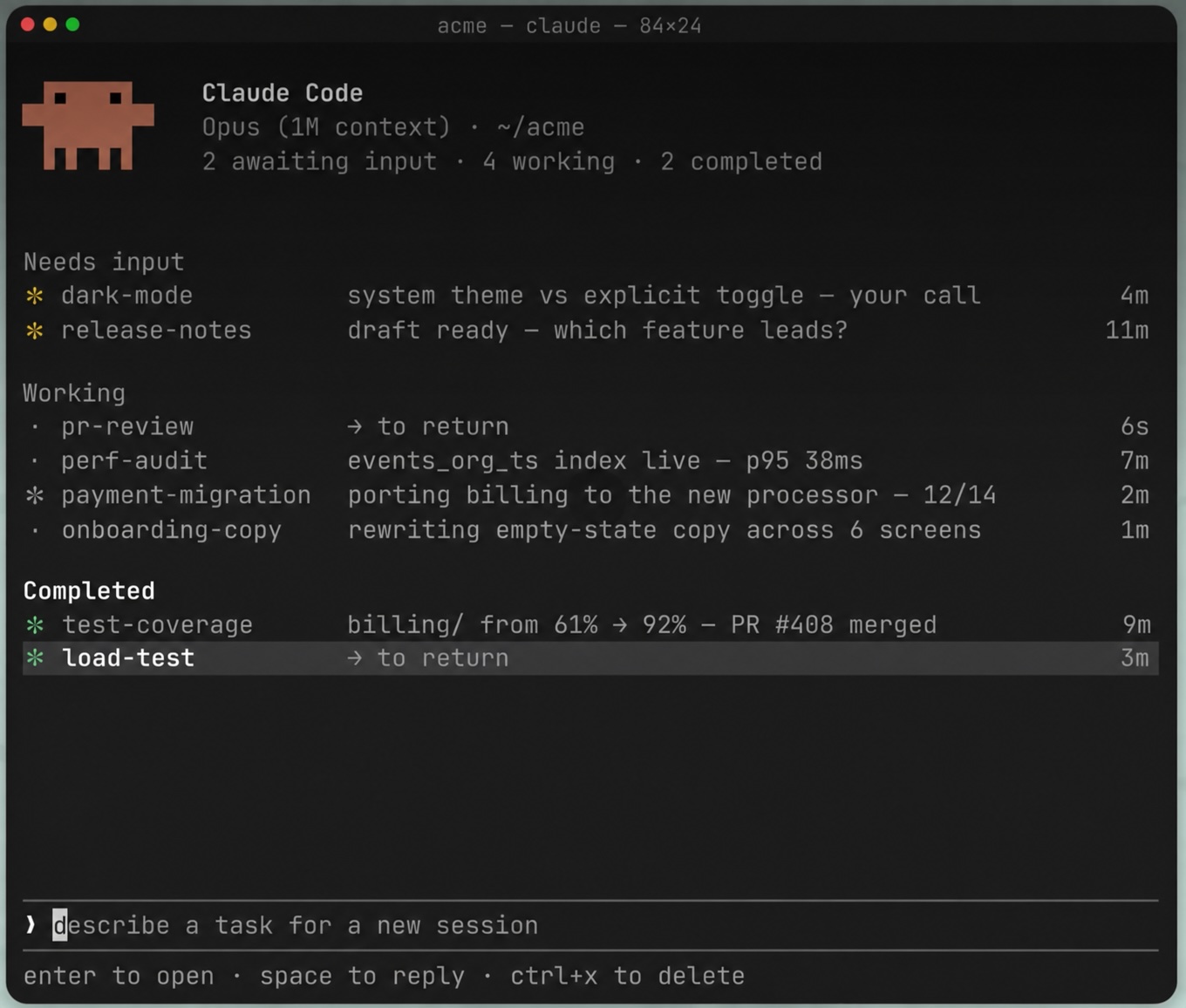
Anthropic announced the Agent View feature in Claude Code on May 11. From a marketing perspective, it looks like a clear overview screen for agents running in parallel—instead of a jumble of terminal windows, there’s a single dashboard where you can see what each session is doing. This interpretation is technically accurate but practically misleading. Agent view is not ** just a better window for monitoring**. It is a change in the working model that has implications for how you write prompts, how you structure tasks, and what you actually want from Claude Code. However, don’t worry—Agent View can be combined with the old way of working.
The feature is available as a research preview for Pro, Max, Team, and Enterprise plans, as well as for Claude API customers. It requires Claude Code v2.1.139 or higher and is launched with the
claude agentscommand.
When you first see Anthropic’s announcement, it’s easy to imagine that after running claude agents, you’ll see all your open Claude Code windows on a single screen. That’s not how it works. The documentation says it plainly: interactive sessions you have open in other terminals won’t appear in Agent view until you explicitly send them to the background.
The philosophy behind the feature is the opposite of “seeing more windows at once.” Instead, it’s: “send things to the background and only bring them back to the windows when needed.” If you don’t accept this reversed approach, Agent view won’t actually do anything for you—it will remain an empty window with a message stating that no sessions are running.
How Working with Claude Code Is Changing
With Agent view, the way you work with Claude Code is changing.
Today, the Claude Code is an interactive dialogue. You type a prompt, see the response, react, and continue. You spot minor misunderstandings within thirty seconds and correct them with the next sentence. When a better angle occurs to you, you say “wait, let’s try a different approach”. When Claude makes a bad decision, you stop him.
This interactivity comes at a hidden cost. When Claude is working, you sit in front of the screen and wait. You’re not typing, but you’re not doing anything else either—you’re watching to see if things are going in the right direction. An hour of working with Claude is an hour of your attention, even if you’re actively typing for no more than ten minutes. Or it involves switching between multiple windows and multiple ongoing projects, which can get a bit chaotic.
Agent view offers a different model. You submit a task as a package: here’s the goal, here are the decision criteria, here’s a fallback in case something goes wrong, and here’s the output format. Then you send the agent to the background, go do something else, and return to everything at once—either to the finished results, or to the point where Claude has really hit a wall and needs you.
From Claude’s perspective, the effort remains the same. From the perspective of your time, it’s a fundamental difference. Instead of an uninterrupted hour of attention, you have five minutes of focus at the beginning, five minutes at the end, and sixty minutes free in the middle. You got it right: the goal is to assign a comprehensive task that will be completed in its entirety. Not to haggle over whether you want the button to be blue and in the bottom left corner…
Who this makes sense for: a developer who has multiple independent tasks and can clearly describe them in advance. Who this doesn’t make sense for: someone who discovers problems as they go, changes direction midway, and needs to actually think things through with Claude, not just assign him tasks.
Here are a few additional notes on this concept.
Active time is not the same as task duration. This is the main misunderstanding upon which the entire concept of Agent view rests. When Claude is working and you’re watching, you’re blocked—you can’t use that time for anything else, even if you’re not actively typing. When Claude works in the background, you have your time back.
Some tasks simply don’t exist in an interactive form. For example, loop tasks, such as an updater, aren’t “faster in the background”—they’re the only ones technically feasible in the background. Here, Agent view doesn’t optimize, but opens up a new category of what you can actually do with Claude Code.

What Agent view technically does and how to use it
This feature consolidates the management of background sessions into a single terminal screen. It is launched with the command claude agents or by pressing the left arrow key in a running session. Each row displays the session name, a one-line summary of what it’s doing (generated by the Haiku-class model, refreshed at most once every 15 seconds), and the time of the last change.

States and icons. A session can be in one of six states: Working (animated icon), Needs input (yellow), Idle (dimmed), Completed (green), Failed (red), Stopped (gray). The shape of the icon specifically indicates whether the process is actively running (✻), paused (∙), or repeating in a loop (✢).
Peek and reply. Press the spacebar to open the peek panel—a quick preview of what the session is generating or waiting for. If the agent asks a multiple-choice question, simply press the number of the corresponding answer. If you just want to see the answer and continue, peek works as a quick glance without a full connection to the transcript.
Attach and detach. The right arrow or Enter key attaches to the selected session in full mode. You can return to the overview by pressing the left arrow at an empty prompt.
Detaching never stops the session—it continues running until you explicitly use /stop or Ctrl+X.
Supervisor process. Background sessions are not hosted by the terminal, but by a separate process (~/.claude/daemon.log) that runs independently of your shell. Sessions therefore survive closing the terminal, but not putting the computer to sleep or shutting it down. After an hour of inactivity, the supervisor process puts the session to sleep (the state remains on disk) and wakes it up the next time you peek in. After putting the machine to sleep, use claude respawn --all.
Worktree isolation. This is the most interesting technical detail. Each background session has write access to the working directory disabled until it moves to an isolated Git worktree under .claude/worktrees/<id>/. Claude does this automatically as soon as it needs to write something. Consequence: ten parallel agents working in the same repository cannot overwrite each other’s files. The worktree is deleted along with the session, so merging or pushing changes must be done beforehand.
Shell commands. The following are available for scripting and working outside the Agent view: claude attach <id>, claude logs <id>, claude stop <id>, claude respawn <id>, claude rm <id>.
Disabling at the organization level. Administrators can disable Agent view by setting disableAgentView in managed settings or the CLAUDE_CODE_DISABLE_AGENT_VIEW variable. Useful for enterprise deployments where you want to deliberately limit how many tokens users burn without supervision.
How to send tasks in the background
Three ways, depending on where you are.
From a bare shell:
cd ~/path/to/project
claude --bg "process prd.md into an implementation plan"
The session runs in the background, returns a short ID, and lists commands for managing it.
From Agent view: After running claude agents, type the prompt into the bottom field and press Enter. The session will appear as a new line. Shift+Enter will start it and immediately connect you to it.
From a running interactive session: The command /bg "further instructions" sends the current conversation to the background along with the associated task.
You can use special syntax in the prompt: the first word as the name of a subagent, @<name> to mention a subagent in the middle of the prompt,
@<repo> to run in a different repository, /<skill> to run a skill, #<number> to join an existing PR session.
The Philosophy of Structured Prompts
Here comes what Anthropic doesn’t say too loudly in its own documentation: Agent view forces you to write better prompts. Not explicitly, but through the environment. When you write a prompt for an interactive session, you are your own safety net. You see how Claude understood it, stop it in time, and clarify ambiguities in the next turn. When you write a prompt for an agent, you’re suddenly not there with it when something goes wrong. The agent might spend twenty minutes working on something you assigned in a single sentence, and return with a result that either fits or doesn’t.
A short background prompt like “write me an implementation plan from prd.md” will end in one of three ways:
- The session gets stuck on “Needs input” right at the start (“Should I use React or Vue?” “Where should I save the output?”), thereby negating the entire benefit of running in the background.
- The agent decides on its own; you return to an output that doesn’t match what you envisioned, and you start from scratch.
- It happens to turn out well. This is the most dangerous scenario—it creates the impression that short prompts work, until the next time you get something completely different from what you wanted.
A structured background prompt should contain several elements that you would otherwise fill in on the fly during an interactive session:
- Baseline or reference point—what success is measured against
- Output goal—what specifically the agent produces and where it saves it
- Authorization matrix—what it is allowed to do (open a PR, edit a file, run a command) and what it is not allowed to do (change configuration, delete data)
- Discretion within boundaries - when an A/B question arises, how to decide so the session doesn’t get stuck
- Fallback in case of failure - what to do if the primary path doesn’t work
- Output format - a template for reporting back
That sounds like significantly more work than “write this and that”. It is more work. But it’s also the only way to avoid stuck sessions and bad outputs—and it has one more advantage, which we’ll discuss in a moment.
Anatomy of a Specific Prompt
Let’s take a real-world example—a prompt for an experimental comparison of the quality of two language models on the task of generating a technical article. Goal: to determine whether the paid model (Claude Sonnet 4.6) justifies the increased cost compared to the free model currently in use.
Compare the quality of Sonnet vs. the free model on generate-topic-article.
Baseline: redcap-rel-17-rel-19 in the DB generated
by inclusionai/ring-2.6-1t:free (15,687 EN characters, 4.3 min).
Question: Does claude-sonnet-4-6 (~$0.015/article) justify the quality improvement?

Pre-authorized:
- 1× POST /admin/runs with Sonnet override (~$0.02 cost)
- git push, gh pr create for doc PR

NOT authorized:
- changing DEFAULT_SYNTHESIS_MODEL without explicit approval in PR review
- deleting or overwriting an existing RedCap article in the DB

Steps:
1. Download the existing RedCap article and save it as /tmp/redcap-ring.json.
This is the baseline.
2. WARNING: /api/admin/articles performs an UPSERT, so a second run for the same
topic will overwrite the existing draft. Before enqueuing, change the article slug —

simplest: temporarily change the article ID in the DB via PATCH to
   "redcap-rel-17-rel-19-ring" (if you have permission), or better:
   run a job for a DIFFERENT topic where you have no references (Drones, V2X), then
   the same topic with Sonnet. The second approach is cleaner — choose for yourself.
3. Enqueue a run with params.synthesisModel = "anthropic/claude-sonnet-4-6".
   Use the default translation model. Wait until it completes.
4. Download the new version to /tmp/redcap-sonnet.json.
5. Compare across 5 dimensions:
   - Length: characters + words
   - Cost: ring=$0, Sonnet=approx. $0.015 (verify via summary.usdCostMicros)
   - Latency: durationMs
   - Specificity: mentions of WIs/specs/FFS samples (grep counts)

- Subjective: read the introduction + Active Development section
6. Branch to chore/model-comparison-topic-article, create
   docs/MODEL-COMPARISON-TOPIC-ARTICLE.md with a metrics table,
   excerpts (~500 characters per version, same section), and a recommendation
   for the default.
7. If Sonnet wins by a significant margin (>1.5× quality in subjective
  evaluation or >30% more specifications), RECOMMEND changing the default —
  but do not implement it. The PR description must include the specific LOC change:

DEFAULT_SYNTHESIS_MODEL in
   packages/spec-pipeline/src/steps/generate-topic-article.ts line 36.
8. gh pr create — this is a doc PR, no code changes.

Conclusion: "Sonnet [better/comparable/worse] than ring,
recommendation: [keep ring/switch to Sonnet/per-topic tier], PR #X".

Decision: if Sonnet fails (quota, key permission), try
deepseek/deepseek-v3.2 or openai/gpt-5.4 as a proxy for
"paid tier" comparison. You don’t have to insist on Sonnet.

Watch out for the UPSERT bug (step 2). This is important; otherwise, you’ll lose the baseline.
What this prompt does well, element by element:
- Baseline at the beginning. A specific article in the DB, its metrics (characters, time), the model used. The agent knows what it’s being measured against.
- Target question in a single sentence. “Does Sonnet justify the quality improvement?” This is a decision criterion, not an instruction.
- Authorization matrix. Explicitly separated pre-authorized and unauthorized. In an interactive session, the agent would pause with a query; in the background, it would either freeze or do something you don’t want.
- **Warning about a specific pitfall. ** The UPSERT bug in
/api/admin/articlesis information the agent cannot quickly determine from the code—it receives it in a prompt beforehand, so it doesn’t lose the baseline. - *Decision-making freedom with boundaries. * Step 2 offers two solution paths and says “choose yourself”. The session won’t get stuck on the question, but the choice isn’t random—you have defined options.
- Fallback on failure. If Sonnet doesn’t work, try DeepSeek or GPT-5.4. Without this, the session would fail at the first error.
- Specific metrics. Five dimensions of comparison, not an abstract “compare quality”. The agent knows what to measure; you know what you’ll get back.
- Threshold for recommendations. “>1.5× quality in subjective evaluation or >30% more specifics.” A concrete, reproducible criterion instead of a vague feeling.
- The line between “recommend” and “execute”. A specific line in the file that should be changed—but the agent won’t change it. The decision remains with the person in the PR review.
- Output format. Template for the concluding sentence “Sonnet [better/comparable/worse]…”—when you then peek into the Agent view, you see a structured response, not three paragraphs of text.
This prompt is 35 lines long and I create it once. The following breakdown roughly shows what its interactive equivalent would cost:
| Experiment step | Interactively | In the background with this prompt |
|---|---|---|
| Download baseline | 1 min query + monitoring | part of the prompt |
| Discussion of UPSERT solution | 3 min dialogue | handled in advance |
| Launch Sonnet run | 1 min input + 15 min monitoring | part of the prompt |
| Agreement on metrics | 4 min dialogue | part of the prompt |
| Download and comparison | 5 min dialogue | part of the prompt |
| Writing the PR doc | 8 min dialogue | part of the prompt |
| Resolving Sonnet failure | 5 min dialogue (if it occurs) | fallback in the prompt |
| Total active time | ~45 min | 5-7 min |
A trick Anthropic doesn’t mention: have Claude write the prompt for you
Here comes the method that truly turns Agent View into a practical tool. The structured prompt from the previous chapter was created by asking the interactive Claude Code for it. Not that I wrote it by hand. I really wouldn’t enjoy that, and I’d simply overlook or forget a bunch of things. The literal “game changer” is having Claude write the prompt for the agents.
Procedure: open a regular claude session over the repository, describe what you want to find out through the experiment, and ask it to write a prompt for a background session. Claude:
- Sees the code. It finds the UPSERT bug in
/api/admin/articlesby reading the endpoint and noticing the conflict clause. - Sees history. The
redcap-rel-17-rel-19baseline is in the DB; Claude looks at it and finds the metrics (15,687 characters, 4.3 min). - Knows project conventions. Branch naming, doc PR structure, commit message format.
- Finds specific lines.
DEFAULT_SYNTHESIS_MODELon line 36—because it reads the file.
If you were writing this yourself, you’d have to look up half the information manually. Time: 20–30 minutes. If you let Claude Code write it in interactive mode, where it has the repository context, it takes 3–5 minutes to formulate the prompt + one minute for reading and editing.
Cost comparison:
| Approach | Your time | Token cost |
|---|---|---|
| Write a structured prompt yourself | 20–30 min | $0 |
| Have Claude Code write it interactively | 3–5 min | ~$0.05 |
| Savings | 15–25 min | ~5 cents |
This isn’t shirking your own work; it’s specialization. Interactive Claude has context regarding the code and conventions. You have the strategic intent and final control. Together, you’ll create a prompt in five minutes that would have taken you half an hour on your own.
The hidden benefit is systematicity. When you write a structured prompt yourself, you tend to omit things that seem obvious to you. You might only mention an UPSERT bug after the agent overwrites your baseline. Claude systematically goes through a mental checklist (baseline? authorization? edge cases? fallback? output format?) because it lacks the human bias of forgetting.
Three important limitations of this approach:
- Claude can hallucinate code structure. If you say “write a prompt for an experiment”, it might invent a line that isn’t in the file. That’s why you should always read the prompt before running it. This isn’t a formality; it’s a necessary check.
- *Claude tends to overspecify. * For a simple task, it will write a prompt just as long as for a complex one. You have to say “more concisely, I’m sure of the direction” yourself.
- The risk of nesting. Claude Code writes a prompt for Claude Code, which runs Claude Code. If an error occurs in the first step (misunderstood intent), it propagates to the next two.
Critically reading the prompt before running it reduces this risk; otherwise, you’ll stack errors like Russian nesting dolls.
Practical rule
After an active night session using Agent View, I’d summarize decision-making like this:
Short prompt → short prompt. Calculate the column sum, explain the error message, find that function. Manually, interactively, done.
Long structured prompt → ask Claude Code to write it. 20+ minutes of work, parallel processing, critical decisions on permissions. Cost: 5 cents and 2 minutes. Return: 20 minutes of your time and better coverage of edge cases.
In between lies a broad spectrum where it depends on routine and personal preference, and on how well you’re aligned with Claude Code. But these two extreme rules work almost every time.
What Anthropic Doesn’t Say
It’s worth staying grounded. The feature has real limits, and the marketing announcement leaves them out.
Token consumption increases non-linearly. The documentation eventually admits this in the Limitations section: “running ten agents in parallel uses quota roughly ten times as fast as running one.” When Claude runs for 20 minutes on its own, you can’t stop it the moment you notice it’s going in the wrong direction. You pay for the full duration, even if you discard the output. With an interactive session, this loss doesn’t exist.
*A false sense of capacity. * Running ten sessions in parallel is easy. Actually keeping an eye on ten outputs and assessing whether each one makes sense is a completely different discipline. There’s a risk you’ll start merging things you didn’t fully understand—just because “Claude says it works.” That’s a risk that grows with the number of concurrent sessions.
Sessions are local. Background sessions do not run in the cloud, but on your machine. Putting your laptop to sleep = stopping the session. For some, this is a major limitation (you want to let a task run overnight); for others, it’s insignificant.
Worktrees lose changes. When you delete a session, its worktree is also deleted, including unsaved changes. You must merge or push before deleting. This is a trap that’s easy to overlook until you stumble into it.
It is neither a web nor an IDE interface. The functionality remains in the terminal. For people who prefer graphical control over agents—a growing number in non-development professions that are starting to use Claude Code—this is a limitation. For hardcore CLI users, however, it is an advantage.
Output quality is harder to detect in parallel mode. The past few months have shown that Claude Code went through a period of instability related to a caching issue. When you run ten sessions and only look at the final summary, it’s harder to spot any quality degradation than in interactive mode, where you see every step.
Context: how this fits into the strategy
On the same day, Anthropic announced the Claude Platform on AWS—a hosted version for enterprise deployment. A few days earlier, it released an update to Claude Managed Agents with new orchestration capabilities across multiple agents. Agent View fits into this series as the client-side manifestation of the same trend: server-side agent orchestration on Anthropic’s end, client-side orchestration on the developer’s end.
The competition does not yet have a similarly unified control center. Cursor has background agents, but their overview is integrated into the IDE. Following its acquisition by Google, Windsurf is focusing its efforts elsewhere. Cline is taking the path of IDE plugins. Anthropic thus occupies a specific niche: the terminal developer with multiple agent sessions. Whether this niche turns out to be large enough, we’ll see in a few months.
Conclusion
Agent view isn’t a feature for every Claude Code user. For someone who uses Claude for quick queries and short code edits, it won’t add anything. For those who assign longer tasks to Claude, it opens up a way to turn a progress tracker into a real agent.
The feature itself isn’t the key. What matters is adopting the work model behind it: tasks are assigned in a structured manner and in advance, not discovered on the fly. A structured prompt may seem like a burden, but it can be written in five minutes if you use Claude Code itself in interactive mode to draft it. Then the investment is negligible compared to the return.
Those who learn this mode—assigning tasks instead of dialoguing, describing in advance instead of correcting on the fly, checking results instead of monitoring progress—will get significantly more out of Claude Code than they did before this feature. Those who stick with interactive dialogue won’t lose anything. They’ll just be surrounded by a growing group of people who work differently.
The documentation is at code.claude.com, and the command to run it is claude agents. The left and right arrow keys are key controls—it’s worth memorizing them before you open the Agent view for the first time.